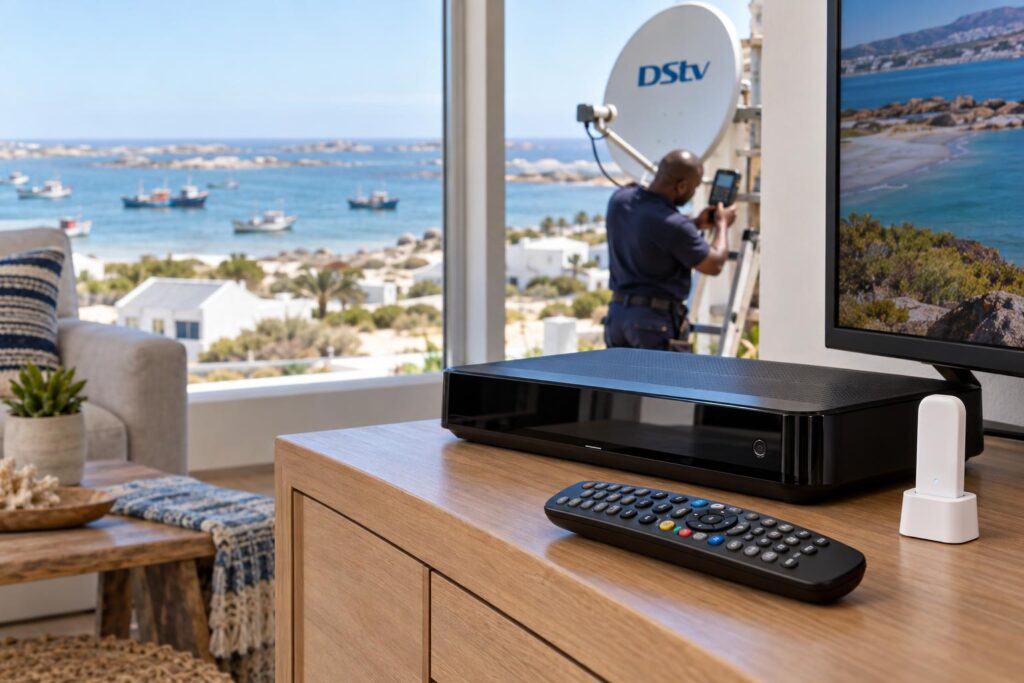
Quick answer: The DStv WiFi Connector is a small accessory that lets an older DStv Explora join your home WiFi. You plug it into the USB port at the back of the decoder, then go to Settings, System Settings and Connectivity Set-up to pick your network. It only brings internet features like Catch Up and Showmax. It does nothing for live satellite channels, which still come from the dish.
Our team sees the same thing on almost every DStv WiFi Connector St Helena Bay callout. Someone arrives at the holiday house for the long weekend, the Explora has been off for months, and Catch Up will not load. The live channels are fine. The internet side is not.
This guide explains what the connector does, how to set it up properly, and how to fix the faults we see most on the West Coast. It ends with a short checklist you can work through before you phone anyone.
A typical West Coast weekend: the Explora will not go online
Picture a house in Shelley Point that only gets used in school holidays. The fibre router was swapped last winter. Nobody told the decoder.
So the Explora still tries to join a network name that no longer exists. On screen it looks like a broken decoder. In real life it just needs the new WiFi name and password.
We see versions of this story all along the coast. A complex unit in Laaiplek where the router sits in the main bedroom. A farmhouse outside Velddrif where the TV is three thick walls away from the router. A rental in Stompneus Bay where the connector was knocked loose during cleaning.
None of these are dish problems. That matters, because the fix is completely different.
What the DStv WiFi Connector does (and what it does not)
Your Explora gets two separate feeds. The satellite cable from the dish brings live TV. The internet connection brings everything on demand.
Two feeds, one decoder
The DStv WiFi Connector only handles the internet feed. Once it is working, DStv says you can stream from DStv and Showmax, watch Catch Up, binge Box Sets and set recordings while you are away from home.
It cannot help a weak satellite signal. If the picture breaks up when the south easter blows, read our guide to DStv picture freezing or pixelating instead. That is a dish, LNB or cable job.
Does your decoder need a DStv WiFi Connector?
Older Explora decoders have no WiFi inside them. They need either an Ethernet cable to the router or the DStv WiFi Connector.
The Explora Ultra has WiFi built in, so it does not need the accessory at all. If you are upgrading anyway, our Explora Ultra installation service includes connecting it to your home network.
Quick test: press the blue DStv button, go to Settings, then System Settings, then Connectivity Set-up. If your Explora shows a list of WiFi networks on its own, it already has wireless. If not, you need the connector or a cable.
Key points before you start
- The connector is for the Explora. Live channels never depend on it.
- Use the official DStv WiFi Connector. DStv's own setup guides are written for it.
- Your router must be on and connected to the internet first.
- DStv recommends an uncapped connection, because streaming uses a lot of data.
- For HD streaming, DStv recommends at least 10Mbps.
How to set up a DStv WiFi Connector step by step
There are two versions in homes around St Helena Bay. The newer one is a small USB stick that sits in a docking station. The older one is a little box with a WPS button and an Ethernet port.
The USB stick with a docking station
This is the version most people have. These are the steps from DStv's quick guide, with the bits that trip people up.
- Make sure your router is switched on and connected to the internet.
- Plug the docking station cable into a USB port at the back of the Explora. If your Explora also has a side USB port, do not use that one.
- Put the connector into the docking station. Place the dock next to the decoder, not on top of it.
- Check that the light on the connector is solid white. That means it has power.
- Press the blue DStv button, then go to Settings, System Settings and Connectivity Set-up.
- Choose your WiFi network from the list and press OK twice.
- Type your WiFi password. Press ALT on the remote if you prefer the on-screen keyboard.
- Wait while the Explora tests the internet connection by itself.
DStv notes the stick can plug straight into the decoder without the dock. They also warn this may affect signal reception, so we always use the dock.
The password step needs a remote that behaves. If buttons are slow or dead, sort out your DStv remote not working first, or you will mistype the password again and again.
The older box with a WPS button
- Power the connector from a USB port on the back of the Explora using its cable.
- Press the WPS button on your router, then the WPS button on the connector.
- Wait about two minutes. The WiFi light flashes, then turns solid white.
- Plug an Ethernet cable from the connector into the green Ethernet port on the Explora.
If your router has no WPS button, DStv describes a setup using a laptop instead. Most people find this fiddly, and it is a common reason we get called.
Switch on Connected Services
This step gets missed all the time. DStv ships the Explora with Connected Services switched off.
Press the blue DStv button, then go to Settings, User Preferences and Connected Services. Turn on the services you want. Then press the Help button, choose Tools and run the Connectivity Checker. You want two green ticks: one for the router and one for the internet.
Stuck on the Connectivity Set-up screen?
Our technicians connect Explora decoders to home WiFi every week, from Velddrif to Britannia Bay. We test it with you before we leave.
DStv WiFi Connector not working: common faults and fixes
Most DStv WiFi Connector faults have a simple cause. Work through these in order.
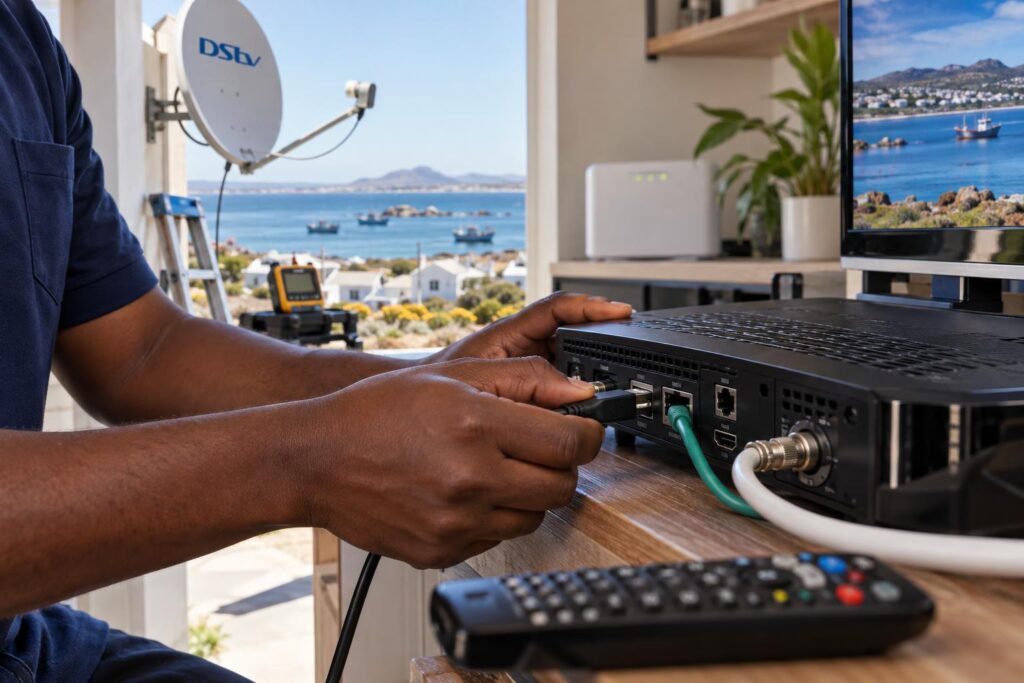
The decoder cannot find your network
The connector is too far from the router, or behind too many walls. DStv suggests moving the docking station to where it gets a better signal. Moving the router closer, or adding a mesh point near the TV, also works.
It worked last month, now it does not
Something changed at the router. A new fibre router, a new WiFi name or a reset password all break the link. Run Connectivity Set-up again and choose the new network.
Connected to the router but no internet
The Connectivity Checker shows a green tick for the router but not for the internet. The decoder is fine. The problem is your line.
- Check that a phone next to the TV can open a website on the same WiFi.
- Restart the router and wait for all its lights to settle.
- Check that your data has not run out on a capped or LTE package.
The light is off or the connector feels dead
- Check the dock cable is pushed fully into a rear USB port.
- Try the other rear USB port.
- If the decoder itself is dead, follow our guide on a DStv decoder that won't turn on.
Catch Up still says it is unavailable
Check that Connected Services are switched on. A decoder that has been off for months may also need some time online to catch up before the on-demand menus work properly.
Local tip: Do not factory reset the decoder as a first step. It wipes your settings, and it never fixes a router or WiFi problem.
Connector, cable or better WiFi: which suits your home?
A wireless link is handy, but it is not always the best answer. Here is how the options compare in homes we work in.
| Option | Best for | Watch out for |
|---|---|---|
| DStv WiFi Connector | Older Explora, router one or two rooms away | Drops out through thick walls |
| Ethernet cable | TV in the same room as the router | Needs a neat cable route |
| Mesh point or access point near the TV | Large homes and double storeys | Must be placed properly |
| Explora Ultra built-in WiFi | Anyone upgrading their decoder | Still needs good WiFi at the TV |
DStv calls the Ethernet cable the most stable option, because other WiFi and Bluetooth devices cannot interfere with it. We agree. If the cable route is too long or messy, our WiFi and network cabling service can run a proper data point to the TV.
Cheap plug-in extenders are a false economy. They often show "connected" while streams keep stalling.
Some households would rather skip the decoder for streaming altogether. Our comparison of DStv Stream versus a decoder explains when that makes sense.
Salt air, wind and load shedding: what they mean for decoder WiFi
Coastal homes bring their own problems. Most of them sit around the router, not the decoder.
Many houses here are built solid, with thick brick and concrete walls. WiFi loses strength through every one. If your home is a double storey, our guide to WiFi in a double-storey holiday home shows how to get signal everywhere.
Load shedding is the other one. Live satellite channels keep playing if the decoder has backup power. Connected features, and the DStv WiFi Connector with them, stop the moment the router or fibre box loses power.
- Put the router and fibre box on the same backup as the decoder.
- Expect the Explora to reconnect a few minutes after power returns.
- Keep connectors and cables indoors and away from damp walls.
Holiday homes need extra thought. If the house stands empty for months, write the WiFi name and password on a card near the TV. Our holiday home DStv setup guide covers the rest of that routine.
And when the dish itself is the issue, that is a different job. Our team handles full DStv installation in St Helena Bay, from Shelley Point to the Paternoster side.
Your DStv WiFi Connector checklist
Run through this DStv WiFi Connector list before you book a callout. It solves most faults we see.
- Router is on, and a phone near the TV can browse the internet.
- Connector light is solid white.
- Dock cable is in a rear USB port, not the side port.
- Dock sits next to the decoder, not on top of it.
- You chose the right network name in Connectivity Set-up.
- The WiFi password is correct, capitals and all.
- Connected Services are switched on.
- Connectivity Checker shows two green ticks.
Still no luck after all eight? Then it is time for our St Helena Bay DStv installers to take a look. Our repair callouts start from R550, and we tell you the cost before any work starts.
We will check the router, the connector and the decoder in one visit. Often the fix is simply a cable run or a better spot for the router.
Want it working before the family arrives?
We set up WiFi connectors, Ethernet points and Explora Ultras across St Helena Bay and the West Coast. One visit, tested on your TV.
For DStv's own instructions, see their guide on connecting your Explora to the internet.
DStv WiFi Connector FAQs
What does a DStv WiFi Connector do?
It lets an older DStv Explora connect to your home WiFi without a cable. That opens Catch Up, Showmax, Box Sets and remote recording. It has no effect on live satellite channels.
How do I connect the DStv WiFi Connector to my router?
Plug the docking station into a rear USB port on the Explora and insert the connector. Press the blue DStv button, then go to Settings, System Settings and Connectivity Set-up. Pick your network and enter the password. On the older box version, you press the WPS button on the router and then on the connector.
Why is my DStv WiFi Connector not working?
The usual causes are a changed WiFi name or password, a connector too far from the router, or a loose dock cable. Run the Connectivity Checker from the Help button to see whether the router or the internet is the problem. Also check that Connected Services are switched on.
Is there a monthly fee for a DStv WiFi Connector?
The connector is a once-off accessory you buy. What you pay each month is your own internet. DStv says data charges apply and recommends an uncapped connection for streaming.
Does the Explora Ultra need a WiFi Connector?
No. The Explora Ultra has WiFi built in. You connect it straight to your home network, or with an Ethernet cable if the router is close.
Will a WiFi connector fix my picture breaking up?
No. Live picture quality comes from the dish, LNB and cabling. If the picture breaks up in wind or rain, the dish or cabling needs attention, not the internet.
Keep reading
DStv Decoder Price St Helena Bay: 2026 PEP, Game & Makro Guide
What does a DStv decoder cost in St Helena Bay right now? October 2026 prices for HD, Explora…
ConnectivityFixing WiFi Dead Spots in Every Room With a WiFi Extender
Map your WiFi dead spots room by room, then fix each one with a better router spot, a…
MaintenanceHow salt air affects your satellite dish (and what to do about it)
Living this close to the sea is wonderful, but the salt air is brutal on equipment. Here's why…